Account Set-up & DUO MFA Enrollment
-
When landing on the Welcome screen, AEM’s privacy and cookie use policy is located at the top of the page.
Click Accept to allow the application to run smoothly.

- To enter PARRE, click on either the Login hyperlink (located next to the PARRE logo on the top left-hand side of the title-bar) or click here in the welcome message: Please click here to login or register.
-
All users must register for an online account. Once you click on the Login hyperlink, you will see the following screen.
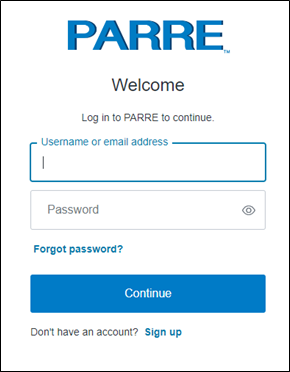
Click Sign Up to add your account.
-
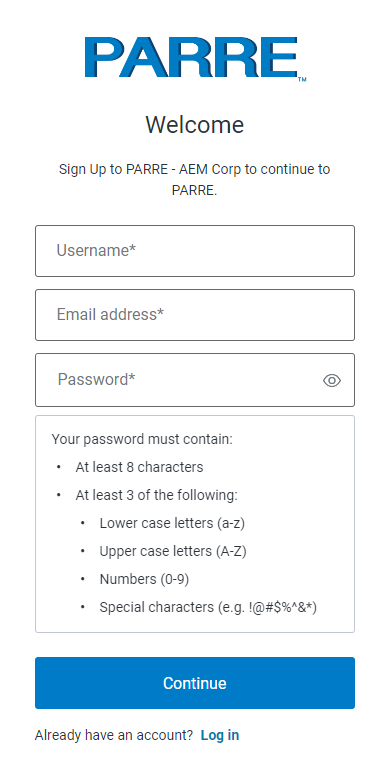
Enter a username, your email address, and a password, then click Continue. Please review the password guidelines:
- At least 8 characters long
-
At least 3 of the following:
- Lower case letter (a-z)
- Upper case letters (A-Z)
- Numbers (0-9)
- Special characters (e.g.!@#$%^&*)
-
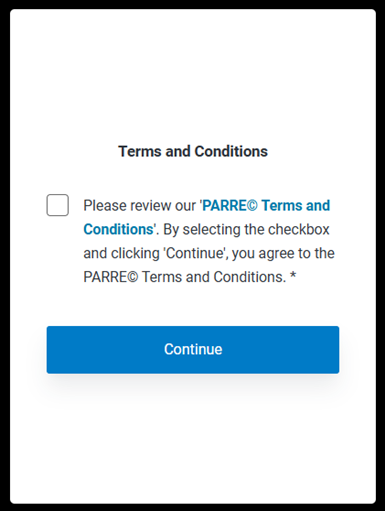
Review the Terms and Conditions, then select the checkbox to indicate your agreement. Click Continue to proceed.
-
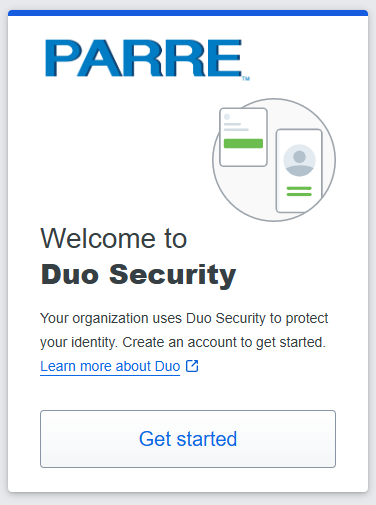
Click Get started to begin enrolling your device in DUO Multi-factor Authentication.
-
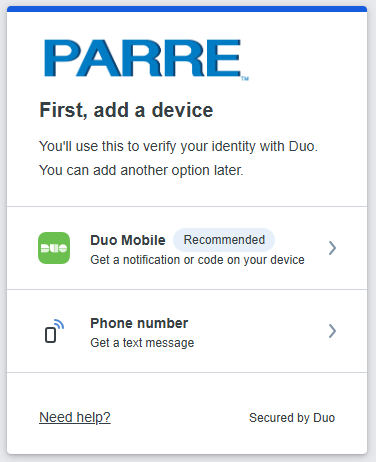
Select the type of device you'd like to enroll.
We recommend using a smartphone for the best experience, but you can also enroll iOS/Android tablets.
-
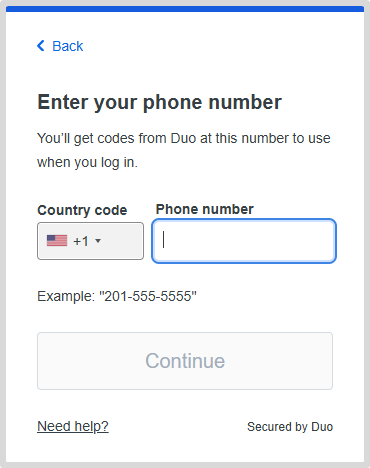
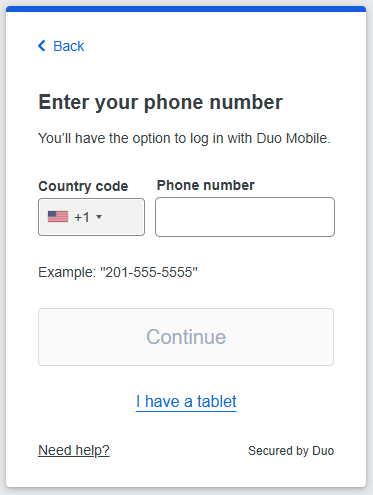
Select your country from the drop-down list and type your phone number.
Use the number of your smartphone that you'll have with you when you're logging in to a Duo-protected service.
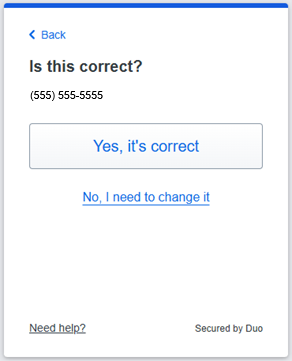
Double-check that you entered it correctly, check the box, and click Continue.
If you're enrolling a tablet you aren't prompted to enter a phone number.
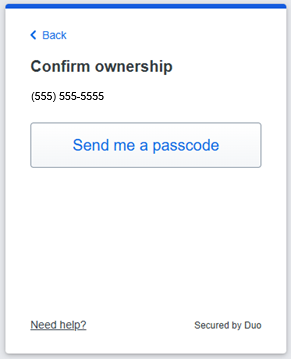
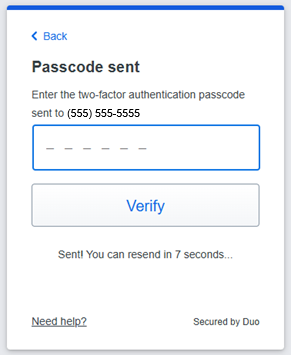
Note: If the phone number you entered already exists in Duo as the authentication device for another user, then you'll need to enter a code sent to that number by text message to confirm that you own it. Choose how you want to receive the code and enter it to complete verification and continue.
-
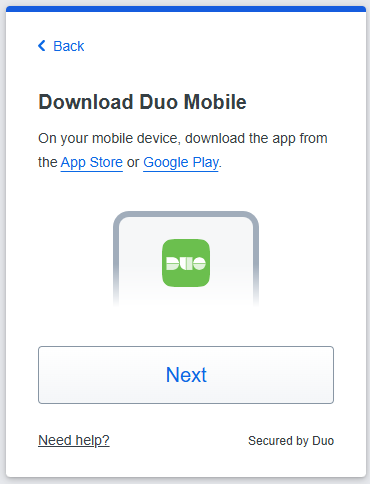
Install DUO Mobile. Duo Mobile is an app that runs on your smartphone and helps you authenticate quickly and easily.
Without it you'll still be able to log in using a phone call or text message, but for the best experience we recommend
that you use Duo Mobile. Follow the platform-specific instructions on the screen to install Duo Mobile.
After installing our app return to the enrollment window and click I have Duo Mobile.
-
Activating the app links it to your account so you can use it for authentication.
On iPhone and Android, activate Duo Mobile by scanning the QR code with the app's built-in QR code scanner.
Follow the platform specific instructions for your device. If this is the first account you're adding to Duo Mobile,
step through the introduction screens and then tap Use a QR code to scan the QR code.
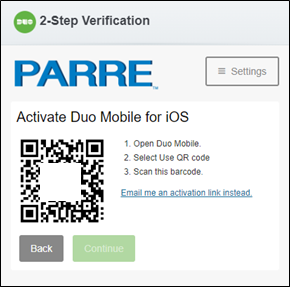
Can't scan the QR code? Click Email me an activation link instead. and follow the instructions.
-
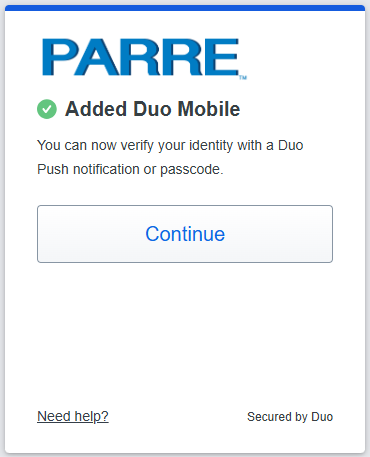
Click Continue. The "Continue" button is clickable after you scan the QR code successfully.
-
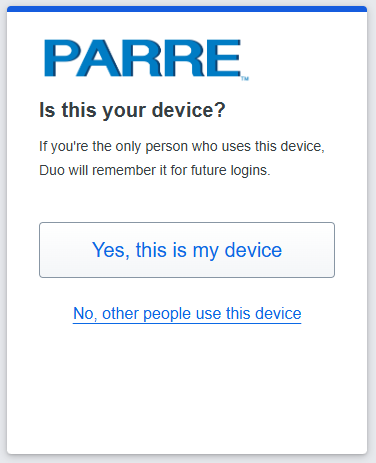
If you are using your normal work or personal computer, Click Yes, this is my device
to ensure Duo remembers the device for future logins.
-
You will receive a “Verification” email from the following email address: no-reply@auth0user.net.
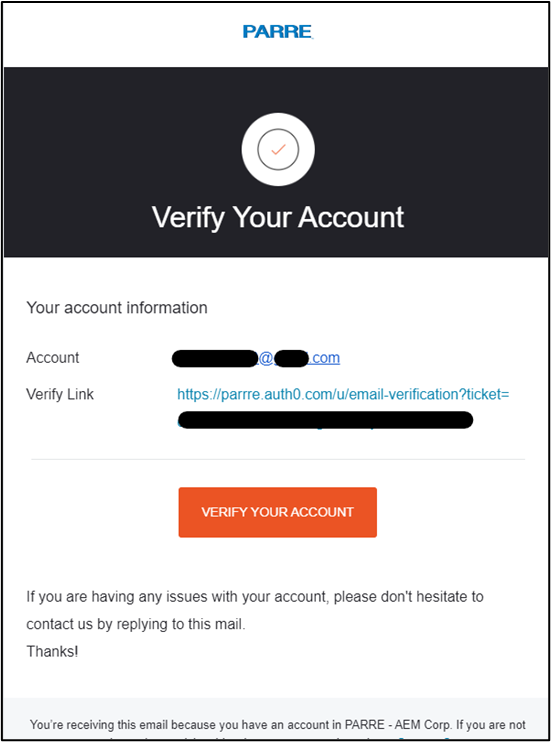
Click on the Verify your account button to verify your email address.
-
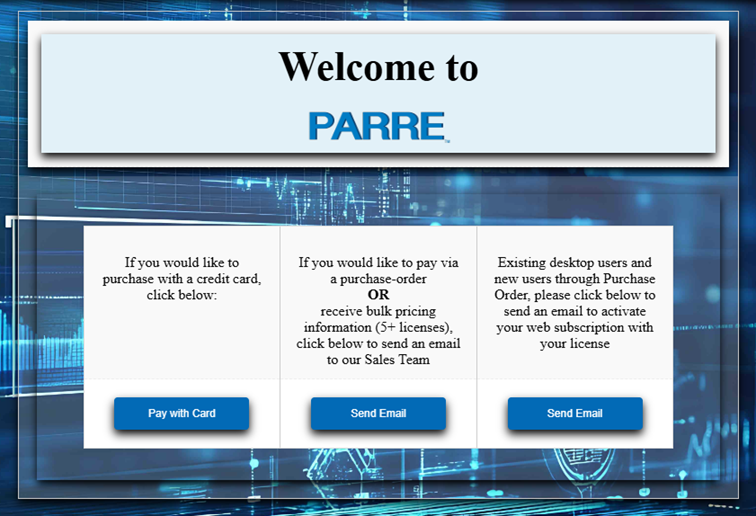
You’re now ready select your payment method. To access PARRE, select the appropriate section.
- Users who purchased via purchase-order or bulk purchase, click Send Email in the right box to send an email to AEM to activate your web subscription.
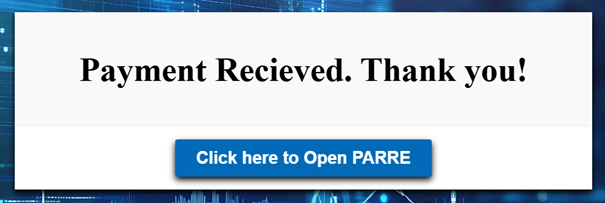
- To purchase PARRE via credit card, click Pay with card in the left box. Once you have input your credit card information, a confirmation page announcing Payment Received.Thank you! to confirm the payment has gone through.
- To purchase subscriptions via a purchase order, or receive bulk pricing information, click Send Email in the center box to send an email to AEM with your purchase-order.